You have probably seen this at a shop counter.
Small items sit beside the till so you might add one to your bag without much thought.
That impulse purchase gives you a little pleasure and raises the store’s revenue per customer.
Your Shopify thank you page can encourage similar purchases through upselling and cross-selling.
For a Shopify business, this raises Average Order Value (AOV).
Find your Shopify thank you page and customise it using the steps below.
How The Default Shopify Thank You Page Looks
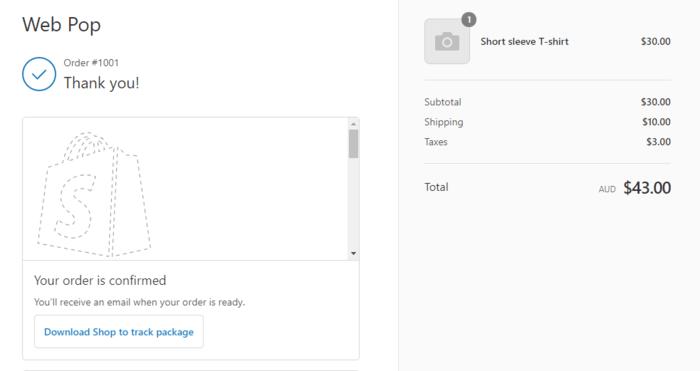
After a customer completes a purchase on Shopify, they arrive at the thank you page.
Its default appearance depends on the theme, but it usually displays “Thank You!” alongside the customer’s information.
The page is simple, with little to encourage customers to browse other products.
Why is it Critical To Customize Your Shopify Thank You Page?
Use this page to improve the shopping experience and stay in touch after a purchase.
A surprise discount can encourage another purchase. For example, a customer who buys a cooking pot might appreciate half off a ladle. A difficult navigation menu could keep them from finding that deal elsewhere.
Another option is to point customers towards related product categories in the navigation menu.
Invite customers to subscribe to your email newsletter so they can return and increase their lifetime value. Their data can also inform retargeting campaigns for cross-selling and upselling.
Continually advertising to find new customers can be expensive. Taking repeat customers further through a sales funnel is a cost-effective way to raise revenue.
A one-click purchase button makes extra purchases easier and increases average order value.
Personalising even the text on a thank you page can help customers feel valued.
How to Make an Enticing Shopify Thank You Page
- Make The Purchase Look Personal
- Offer Valuable Discounts
- Include A Video That Speaks To Your Customers
- Engage On Social Media Platforms
- Upsells
- Offer Incentives For Referrals
- Provide Survey Questions To Get Feedback
- Enable Customers To Track Their Shipment
- Create Visual Trust Symbols
1. Make The Purchase Look Personal
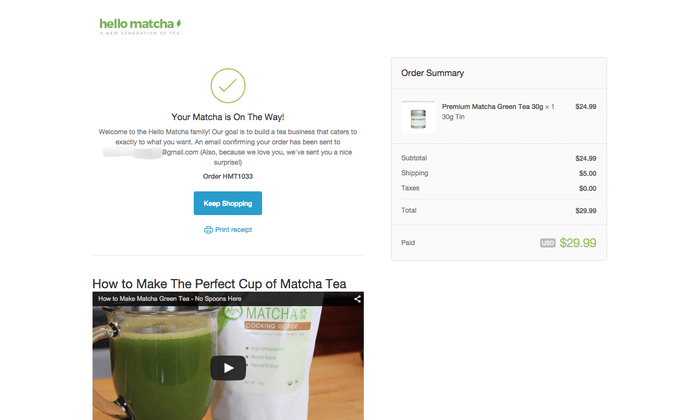
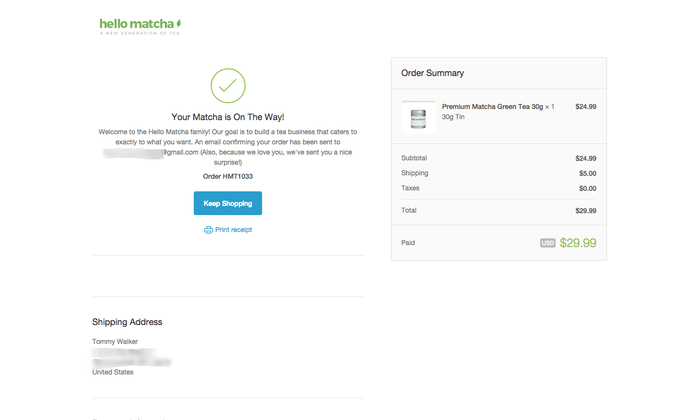
Include the order details and confirmation that the purchase is complete, along with shipping information. Adding a sincere message can also encourage customers to engage with the store.
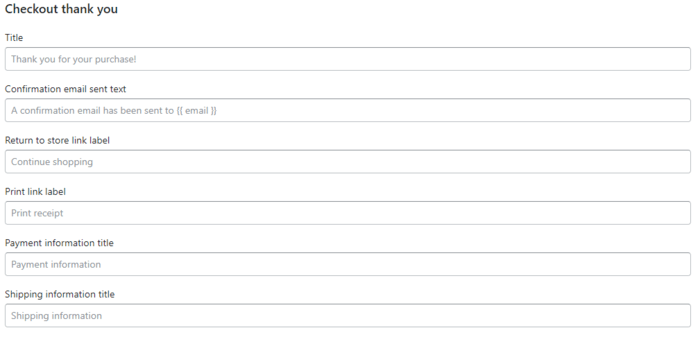
Open Themes > Actions > Edit languages. Use the button with the 3 dots below Save, then select Checkout & system.
The settings contain many store messages you can customise. Find Checkout thank you page and write a personal message thanking customers for buying.
2. Offer Valuable Discounts
A coupon for a 30% discount can bring a customer back for another purchase. A discounted add-on to the product they just bought is another cross-selling option.
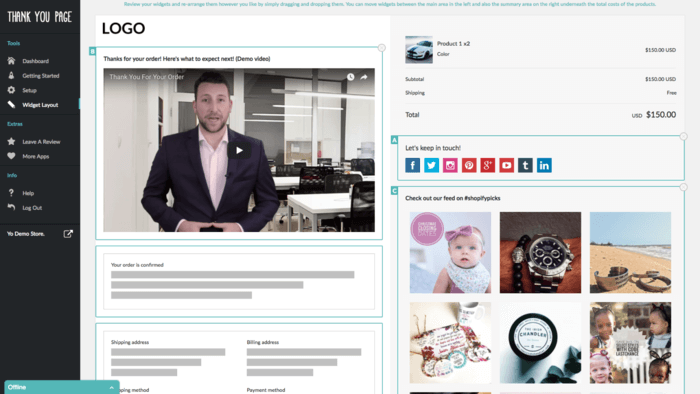
Use drag-and-drop widgets in the Thank You Page Customizer app to add coupon codes. The app also supports upselling and cross-selling, and can encourage shoppers to follow your social accounts.
3. Include A Video That Speaks To Your Customers
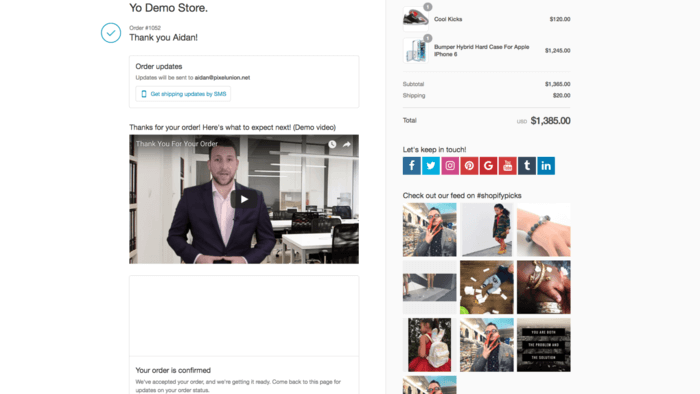
Show the people behind your brand in a video. Include shipment information and upcoming products, and recommend other products the buyer may find useful.
Use Thank You Page Customizer to embed that video on your site.
4. Engage On Social Media Platforms
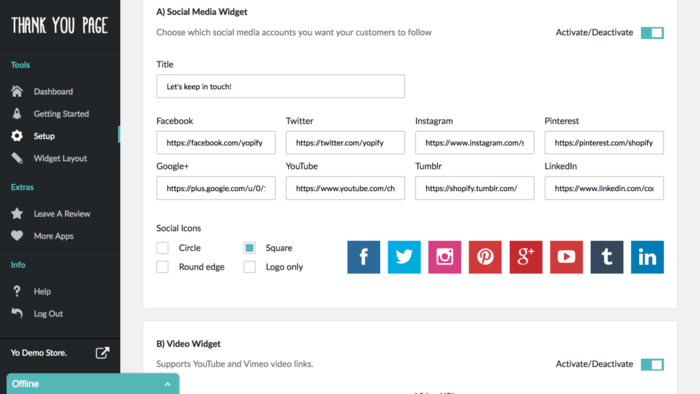
Social followers can see new products and promotions that may bring them back to buy again. Asking shoppers to share their purchases also attracts customers through word of mouth at little cost.
With Thank You Page Customizer, add share buttons that include a link.
5. Upsells
Pop-ups and one-click upsells commonly encourage another purchase. Incentives with a deadline can make these more effective.
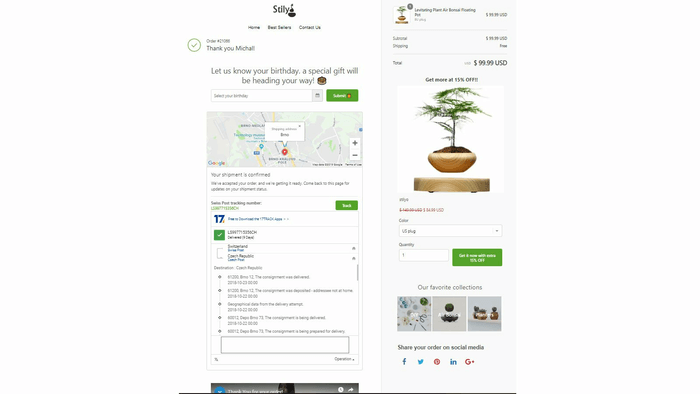
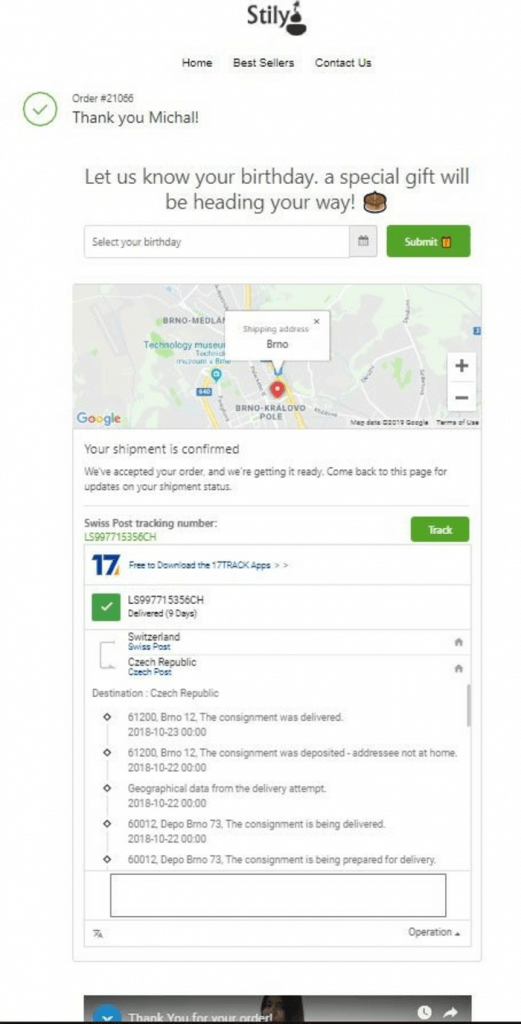
With the Reconvert app, you can add a discounted upsell to the right bar. It also lets you collect birthdays and show more detailed shipment tracking.
6. Offer Incentives For Referrals
A customer who has chosen to buy your product can be a strong advocate for the shop.
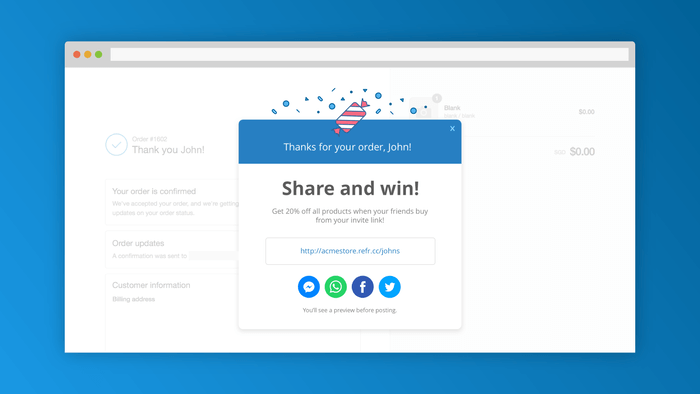
A referral programme rewards shoppers with a discount for inviting friends to buy from your site. The shopper receives a reward and your store gains sales.
Customise pop-ups and referral offer pages with Referral Candy. Its incentives include cash, coupons and free gifts.
7. Provide Survey Questions To Get Feedback
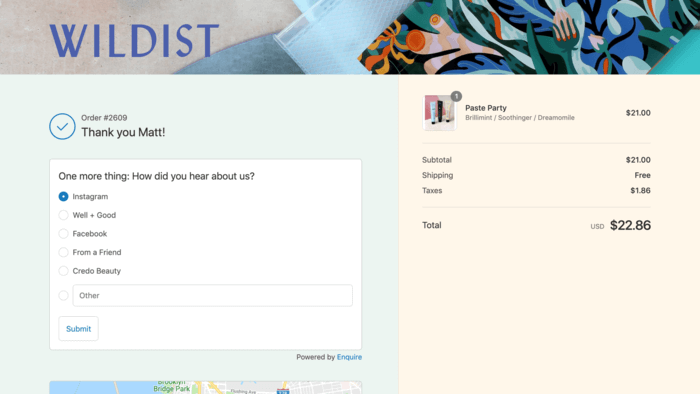
Ask for feedback on the thank you page from shoppers who have completed the whole purchase. Embedding survey questions saves them from opening another tab and can improve response rates.
To encourage more survey responses:
- Keep questions relevant to the brand.
- Write questions that need only short answers.
- Give a small reward when the shopper completes the survey.
Use Shopify’s Enquire Post Purchase Survey app to embed survey questions in your thank you page with your brand’s design and colours.
8. Enable Customers To Track Their Shipment
Display tracking information directly on your Shopify thank you page so customers can avoid dealing with complicated tracking numbers.
Tracking gives customers a reason to return to the page. Upsell widgets and coupon codes can then encourage more purchases.
Reconvert displays detailed tracking information for customers. Other Shopify apps do the same, so you can choose the option that suits your store.
9. Create Visual Trust Symbols
Trust badges also reassure customers on the thank you page after helping them act on product and checkout pages. Free shipping, money-back guarantees and familiar third-party logos can reduce buyer’s remorse and immediate refund requests.
Follow Shopify’s detailed tutorial to add trust symbols. Open Online Store > Themes and the Actions dropdown. You can first select Duplicate to keep a working backup in case a code change goes wrong.
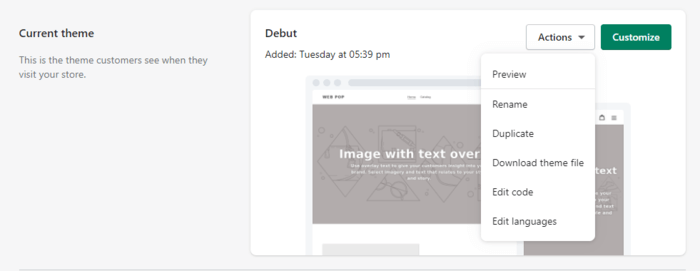
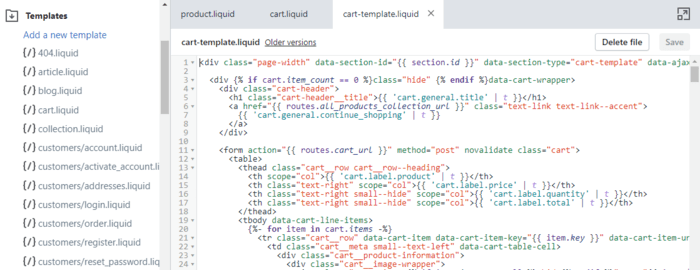
Open Actions once more and select Edit code. Add Shopify’s supplied snippets to product.liquid or cart.liquid.
If you would prefer an app to editing code, Free Trust Badge makes it easy to add badges to the thank you page.
Frequently Asked Questions
How Do I Change My Thank You Page on Shopify?
You can change your Shopify thank you page through the use of Shopify apps or editing the JavaScript or CSS code. To add code, go to Settings > Checkout > Order processing > Additional scripts. You can also edit your theme by going to Online Store > Themes > Actions > Add code.
How Do I Add A Track Order Page In Shopify?
Shopify has a basic template for your customer’s order status page which you can view by going to Orders > Select customer name > More actions > View order status page. You can also use apps such as ParcelPanel to customize a track order page.
How Do I Change My Order Status On Shopify?
Go to Orders > Select customer name. Click the Mark as fulfilled button to change the status to Fulfilled. On the top right, the Refund option allows you to refund and cancel an order.
How Do I Edit My Shopify Page?
Go to Online Store > Themes. You’ll see the Customize option next to your active theme. Select it and on the top you will see a dropdown button that allows you to select the page you want to modify on your site. This includes product pages and your checkout page.
Conclusion
At the end of checkout, your Shopify thank you page can collect email opt-ins and encourage social engagement. It also gives you a place to upsell products and increase sales.
Choose suitable Shopify apps and customise the page to encourage visitors to act and buy other products from your store.